MicrosoftTeams從零開始:基本操作步驟
出自KMU Wiki
| 在2026年3月31日 (二) 10:30所做的修訂版本 (編輯) Mingzong (對話 | 貢獻) (→桌機) ←上一個 |
在2026年3月31日 (二) 10:31所做的修訂版本 (編輯) (撤銷) Mingzong (對話 | 貢獻) (→(此說明為使用學校帳號使用,非學校帳戶者請直接登入個人帳號使用,無需下載)) 下一個→ |
||
| 第11行: | 第11行: | ||
| ===桌機=== | ===桌機=== | ||
| - | === (此說明為使用學校帳號使用,非學校帳戶者請直接登入個人帳號使用,無需下載) === | ||
| - | <font color="#F7A004">(This guide is for using a school account. For non-school accounts, please log in directly to your personal account without downloading.)</font> | ||
| - | 1.滑鼠左鍵點擊"開始"並在搜尋處鍵入關鍵字(例teams)後在"最佳比對"下MicroSoft Teams(personal)處點擊滑鼠的左鍵執行 | ||
| - | <font color="#F7A004"> Left-click "Start," type the keyword (e.g., teams) in the search bar, and then left-click "Microsoft Teams (personal)" under "Best match" to execute.</font> | ||
| - | :[[Image:win11teams-1-1.jpg|500px]] | ||
| - | |||
| - | 2.在登入的畫面中點選"取得Microsoft Teams(工作或學校)" | ||
| - | <font color="#F7A004"> In the login screen, click "Get Microsoft Teams (work or school)."</font> | ||
| - | :[[Image:win11teams-2.jpg|500px]] | ||
| - | |||
| - | 3.在下圖的畫面中點選"Download Microsoft Teams for Windows",點選後會自動下載設定程式 | ||
| - | <font color="#F7A004"> In the screen shown below, click "Download Microsoft Teams for Windows." The setup program will download automatically.</font> | ||
| - | :[[Image:win11teams-3.jpg|500px]] | ||
| - | |||
| - | 4.下載完成後請執行設定程式(如下圖紅框處) | ||
| - | <font color="#F7A004"> Once the download is complete, run the setup program (indicated by the red box below).</font> | ||
| - | :[[Image:win11teams-4-1.jpg|500px]] | ||
| - | |||
| - | 5.安裝完會自動再回到登入的畫面(此畫面就沒有"取得Microsoft Teams(工作或學校)"字樣) | ||
| - | <font color="#F7A004"> After installation, you will automatically return to the login screen (this screen will no longer show "Get Microsoft Teams (work or school)").</font> | ||
| - | :[[Image:win11teams-6.jpg|500px]] | ||
| - | |||
| - | 6.登入的畫面請鍵入@live.kmu.edu.tw帳號登入 | ||
| - | <font color="#F7A004"> On the login screen, please enter your @live.kmu.edu.tw account to log in.</font> | ||
| - | :[[Image:win11teams-8.jpg|500px]] | ||
| - | |||
| - | 7.登入成功出現提示的畫面請自行做選擇(本例是選"否,僅限此運用程式) | ||
| - | <font color="#F7A004"> After successful login, a prompt will appear; please make your choice (in this example, "No, sign in to this app only" is selected).</font> | ||
| - | :[[Image:win11teams-9-1.jpg|500px]] | ||
| - | |||
| - | 8.登入成功後軟體的執行畫面如下圖 | ||
| - | <font color="#F7A004"> The software interface after successful login is shown below.</font> | ||
| - | :[[Image:win11teams-10.jpg|500px]] | ||
| - | |||
| - | 9.下次要再執行Teams軟體時,請參考下圖 | ||
| - | <font color="#F7A004"> When you need to run Teams again, please refer to the image below.</font> | ||
| - | :[[Image:win11teams-11.jpg|500px]] | ||
| === (此說明為使用學校帳號使用,非學校帳戶者請直接登入個人帳號使用,無需下載) === | === (此說明為使用學校帳號使用,非學校帳戶者請直接登入個人帳號使用,無需下載) === | ||
在2026年3月31日 (二) 10:31所做的修訂版本
目錄 |
在Windows如何使用Teams(Office365 Teams)
線上使用
登入Microsoft365/Office365 Log in to Microsoft 365/Office 365
請以 本校 Microsoft 365 帳號 (@live.kmu.edu.tw) 登入 https://office.com Please log in with your school's Microsoft 365 account (@live.kmu.edu.tw)
請點選 T圖形 使用MicroSoft Teams Please click the T-shaped icon to use Microsoft Teams

桌機
(此說明為使用學校帳號使用,非學校帳戶者請直接登入個人帳號使用,無需下載)
(This guide is for using a school account. For non-school accounts, please log in directly to your personal account without downloading.)
1.滑鼠左鍵點擊"開始"並在搜尋處鍵入關鍵字(例teams)後在"最佳比對"下MicroSoft Teams(personal)處點擊滑鼠的左鍵執行 Left-click "Start," type the keyword (e.g., teams) in the search bar, and then left-click "Microsoft Teams (personal)" under "Best match" to execute.

2.在登入的畫面中點選"取得Microsoft Teams(工作或學校)" In the login screen, click "Get Microsoft Teams (work or school)."

3.在下圖的畫面中點選"Download Microsoft Teams for Windows",點選後會自動下載設定程式 In the screen shown below, click "Download Microsoft Teams for Windows." The setup program will download automatically.

4.下載完成後請執行設定程式(如下圖紅框處) Once the download is complete, run the setup program (indicated by the red box below).

5.安裝完會自動再回到登入的畫面(此畫面就沒有"取得Microsoft Teams(工作或學校)"字樣) After installation, you will automatically return to the login screen (this screen will no longer show "Get Microsoft Teams (work or school)").

6.登入的畫面請鍵入@live.kmu.edu.tw帳號登入 On the login screen, please enter your @live.kmu.edu.tw account to log in.

7.登入成功出現提示的畫面請自行做選擇(本例是選"否,僅限此運用程式) After successful login, a prompt will appear; please make your choice (in this example, "No, sign in to this app only" is selected).

8.登入成功後軟體的執行畫面如下圖 The software interface after successful login is shown below.

9.下次要再執行Teams軟體時,請參考下圖 When you need to run Teams again, please refer to the image below.

在行動裝置如何安裝Teams(Office365 Teams)
APPLE&Android
在行動裝置(手機或平板)安裝 Microsoft Teams ,只需前往 iOS App Store 或 Google Play 商店 搜尋「Microsoft Teams」並點選下載安裝即可。安裝後,使用您的 Microsoft 365 帳號(公司、學校或個人帳號)登入即可開始使用。或直接掃描下圖條碼會導向下載。

Teams(Office365 Teams)操作說明
線上版
登入
1、請以 本校 Microsoft 365 帳號 (@live.kmu.edu.tw) 登入 https://office.com
2、請點選 Teams 圖示
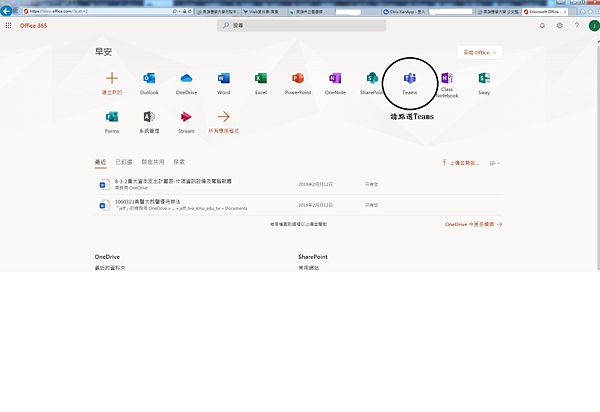

桌機版
行動裝置版
聊天-一對一
聊天-群組
更改群組名稱
建立或加入團隊
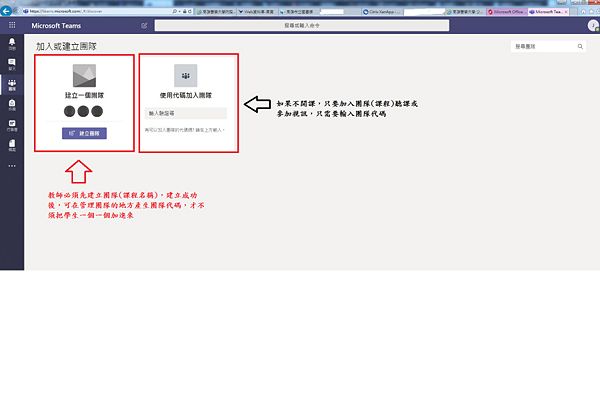
3、建立或加入團隊(此功能等同Line的群組)(輸入代碼也可以加入-下方其它說明有介紹如何產生代碼)

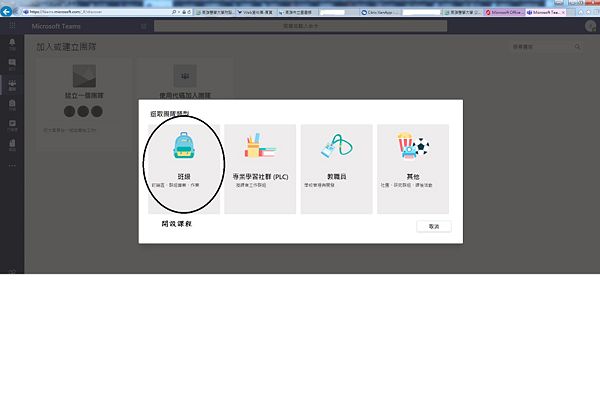
4、選擇團隊(此功能等同Line的群組)類型(請自選擇團隊類型)

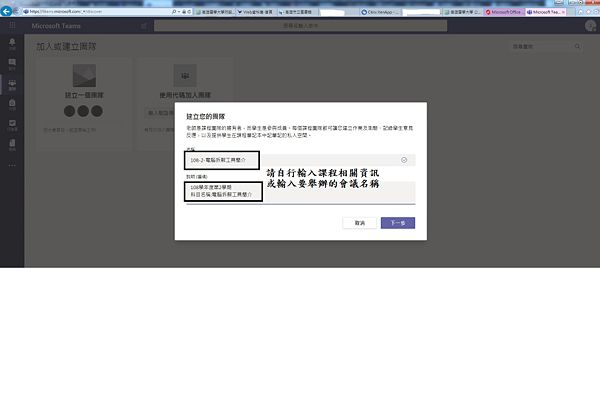
5、輸入團隊(課程)相關資料

6、加入學生帳號或教職員帳號
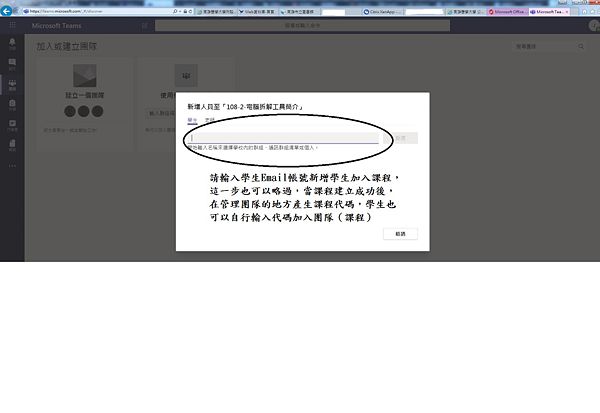


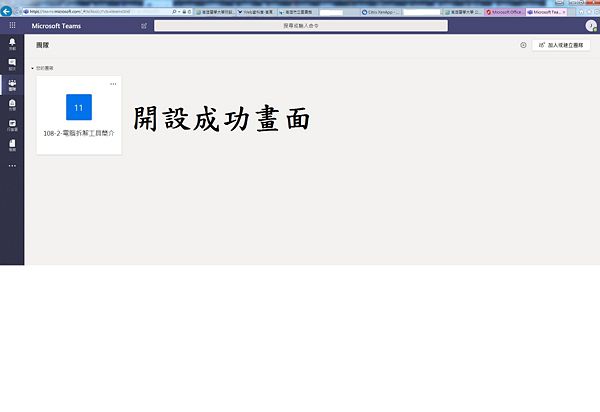
7、建立成功後的操作介面


如何在團隊功能中聊天
其它說明
產生代碼


下載單機版Teams

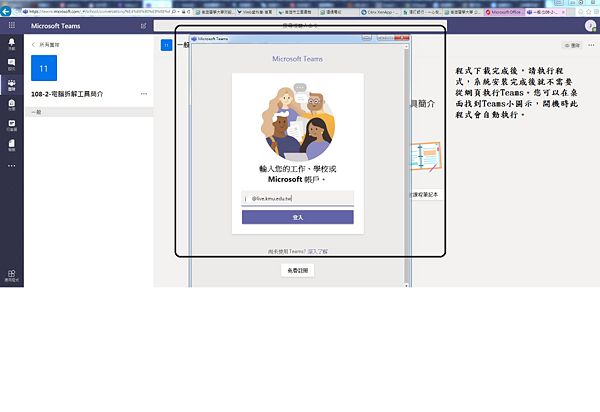

如何找到自己的M365帳號(帳號@live.kmu.edu.tw)
1.限本校在校教職員及學生使用,未包含離退職教職員、校友及附屬機構員工。
2.登入網址 https://office.com
3.登入帳號 Your_KMU_MAIL_ID@live.kmu.edu.tw 例如︰
 教職員學校信箱若為 teacher@kmu.edu.tw  則 Microsoft 帳號為 teacher@live.kmu.edu.tw
 學生學校信箱若為 u110999001@kmu.edu.tw  則 Microsoft 帳號為 u110999001@live.kmu.edu.tw
4.密碼︰ (1) 每年 9 月建立當年入學新生及新進教職員之 Microsoft365 帳號,建立帳號後將發送電子郵件通知至 @kmu.edu.tw 信箱, 請登入本校信箱 https://email.kmu.edu.tw 查看通知信 (請搜尋主旨包含 Microsoft365 字串之信件)。 (2) 若忘記 Microsoft365 密碼,可利用微軟自助式密碼重設功能︰https://passwordreset.microsoftonline.com/ 電子郵件或使用者名稱請輸入 Microsoft365 帳號: Your_KMU_MAIL_ID@live.kmu.edu.tw 密碼重設之信件預設會寄到您本校信箱(@kmu.edu.tw),若出現「未註冊密碼重設」訊息,請與以下窗口聯絡。
5.注意事項: (1) Microsoft365 服務條款依微軟與本校簽訂之授權合約為準,合約每年一簽,可能有合約條文異動或不續約的情況,均可能影響服務內容 (請參考圖資處網頁)。 (2) 帳號僅限在校期間使用(畢業、肄業、離職、退休即刪除)。 (3) 若使用本服務之 OneDrive 儲存空間 (因應微軟2024年8月新管理政策,全校共用100TB,教職員容量上限500GB,學生200GB),仍應自行備份資料,以降低資料誤刪或遺失的風險。 (4) 本校正式 (官方) 信箱為 YourAccount@kmu.edu.tw 學校的通知都以正式信箱為主,收發信網址 https://email.kmu.edu.tw(支援行動裝置) (5) 以上若有任何疑問,歡迎您隨時與圖書資訊處網路技術組聯絡:校內分機 2184 電子郵件信箱 net@kmu.edu.tw

